
01
Install Vigiland
Vigiland is free. On Android, install the app from Google Play. On iPhone or a computer, use the web version right in your browser.
- 1Android: search for “Vigiland” on Google Play, or use the download button on this site.
- 2iPhone and computer: open vigiland.org and choose “Use the web version”.
- 3On a phone, you can add the web version to your home screen from the browser menu to open it like an app.
02
Create your account
No password to remember: you get a verification code each time you sign in.
- 1Pick your country and enter your phone number, or switch to the “Email” tab.
- 2Enter the code you receive by SMS or email.
- 3Complete your profile: your name, then your country and region.
- 4Allow location and notifications to enjoy every feature.
You can also sign in with your Google account.
03
Report a threat
Illegal logging, illegal mining, fire, poaching, pollution, land conflict, expropriation, abuses against communities or indigenous peoples: report what you see.
- 1Tap the “Publish” button in the middle of the navigation bar.
- 2Take a photo of the situation, or pick one from your gallery.
- 3Choose the category that best matches what you see.
- 4Describe the situation in a few sentences: what you see, since when, who is affected.
- 5Check the location: it is recorded by GPS at report time, with your consent.
- 6Tap “Publish”. Your alert is sent to your country’s team.
No network? Prepare your report anyway: it is kept on the phone and sent automatically as soon as you are back online.
04
Follow your alerts
Each alert is reviewed by the Vigiland team in its country before it appears on the map.
- 1“Under review”: your alert was received and is being checked.
- 2“Confirmed”: the alert is validated and visible on the map. You get a notification.
- 3“Archived”: the alert is no longer active.
Find all your alerts and their status in your profile.
05
Explore the map
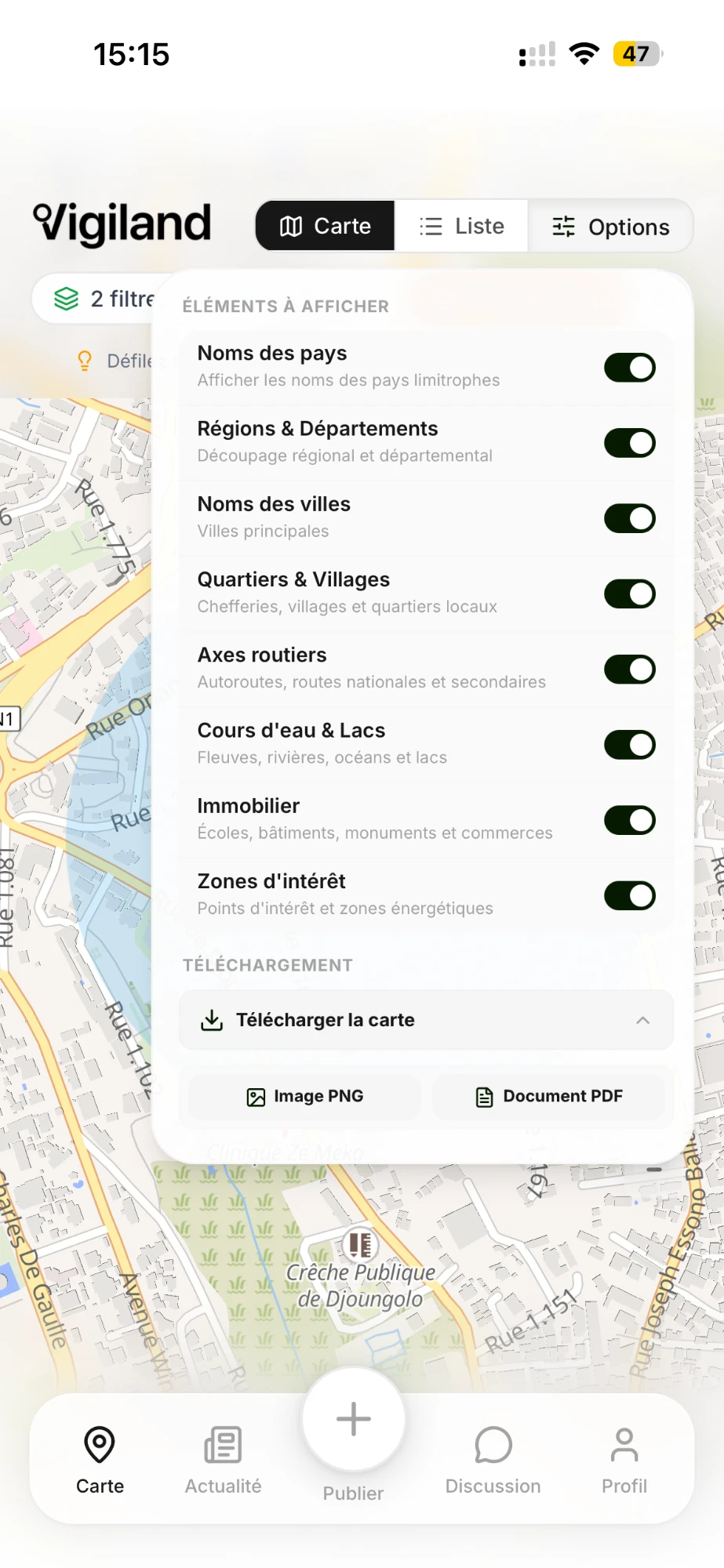
The map gathers confirmed alerts across Africa. Tap an alert to see its photo, description and date.
- 1Filter by category or show recent alerts only.
- 2Switch between map view and list view.
- 3In “Options”, show layers: country and city names, roads, rivers, areas of interest.
- 4Download the map as an image or PDF for your reports.
06
Choose your monitoring area
Set the area you care about to follow what happens there first.
- 1Open your profile.
- 2Choose “My surveillance zone”.
- 3Place the centre of your area and pick its radius.
07
Talk with the community
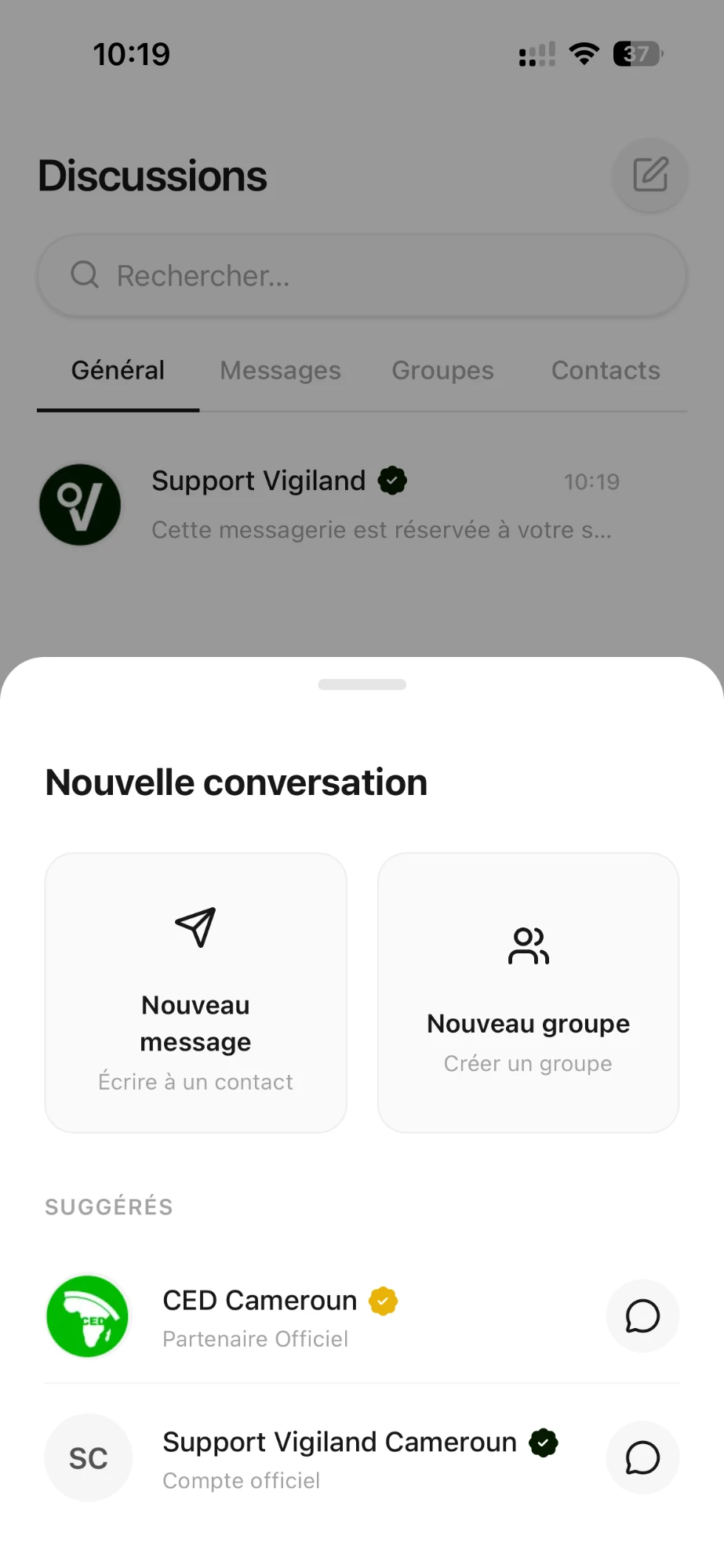
Chats let you talk with other members, create groups and contact the Vigiland support team in your country.
- 1Open the “Chats” tab.
- 2Tap “New message” to write to a contact, or “New group”.
- 3For any question, write to support: it answers from your country.
08
Protect your privacy
You stay in control of what others see about you.
- 1Anonymous mode: from your profile, turn on “Anonymous mode” so your name does not appear on your alerts.
- 2Report photos are visible only to signed-in members.
- 3Delete your account: in settings, choose “Delete account”.